How to take a scrolling screenshot on Windows 10 and 11
October 30, 2026 · 4 min read
Windows 10 and 11 cannot take a scrolling screenshot on their own: PrtSc and the Snipping Tool capture only what is visible on the display. For a page that scrolls, use a tool that scrolls for you. In a browser that means Edge’s built-in screenshot, Chrome’s developer tools or an extension. For desktop apps, a free tool such as ShareX can do it.
Scrolling screenshot methods on Windows
| What you need to capture | Method | Effort |
|---|---|---|
| A web page in Edge | Ctrl + Shift + S, then Capture full page | Low |
| A web page in Chrome | Full page screenshot extension | Low |
| A web page in Chrome, no extension | DevTools command Capture full size screenshot | Medium |
| A desktop app, file explorer or long document | ShareX scrolling capture | Medium |
Microsoft Edge: Screenshot with Capture full page
Edge has its own screenshot tool. Press Ctrl + Shift + S (or right-click the page and choose Screenshot), then pick Capture full page. Edge renders the whole page and opens it in a preview where you can draw on it, copy it or save it as an image. It works only in Edge and only for the open page.
Google Chrome: two ways
Without installing anything. Open DevTools with F12 or Ctrl + Shift + I, press Ctrl + Shift + P, type screenshot and run Capture full size screenshot. Chrome saves a PNG of the full page to Downloads. It’s reliable on simple pages, but you repeat the steps every time, you get PNG only, and pages that load images while you scroll can come out with gaps.
With an extension. A full page screenshot extension scrolls the page, waits for images that load on the way and joins everything into one file.
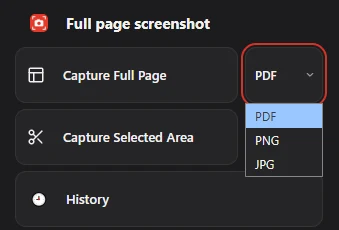
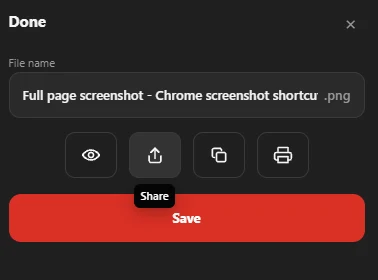
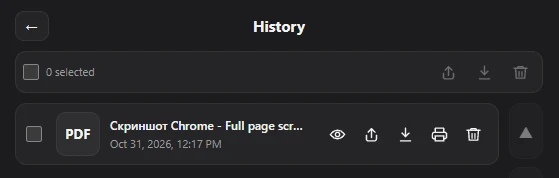
Full page screenshot works this way: click the icon, pick PDF, PNG or JPG in the menu next to Capture Full Page, then click Capture Full Page. When the capture is done, a dialog lets you rename the file, preview it, share it, copy a PNG to the clipboard or print it before you click Save. Fixed headers and chat bubbles stay in place instead of repeating down the image, and finished files are kept in History for later. It captures web pages in Chrome only, so for desktop apps read on.
Check the shortcut for any capture
Pick your computer and what you want to capture.
Desktop apps: ShareX scrolling capture
For anything outside the browser, such as a long Excel sheet, a chat app or a settings window, Windows has no scrolling option at all. ShareX, a free open-source tool, has a Scrolling capture mode: you select the window, ShareX scrolls it automatically and stitches the frames. It takes a few settings to get right, and results depend on how the app scrolls.
Why your scrolling screenshot looks wrong
- Repeated header or toolbar. The page has a sticky element that follows the scroll. Browser-based tools handle this better than window-stitching tools.
- Blank areas or missing images. The page loads images only when they come into view. Scroll to the bottom once before capturing, or use a tool that waits for them.
- The capture stops early. Some pages load more content endlessly (social feeds). Capture the part you need, or select an area.
Questions people ask
Does the Snipping Tool have a scrolling screenshot?
No. Its modes are Rectangle, Window, Full screen, Freeform and Video, as listed in Microsoft’s Snipping Tool guide. None of them scrolls.
How do I take a scrolling screenshot of a web page in Windows 11?
In Edge, use Ctrl + Shift + S and Capture full page. In Chrome, use DevTools or an extension such as Full page screenshot.
Can I save a scrolling screenshot as PDF?
Edge and DevTools save images. To get a PDF of the full page as it looks on screen, use an extension that exports PDF, or see how to save a whole webpage as a PDF.
Related: full screen snip · screenshot part of the screen · HP, Dell and Lenovo laptops