How to screenshot on an HP laptop (with or without PrtSc)
October 30, 2026 · 4 min read
The fastest way to screenshot on an HP laptop is Windows + Shift + S: it opens the Snipping Tool overlay and lets you capture a rectangle, a window or the full screen. To save the whole screen as a file in one step, press Windows + PrtSc. If PrtSc does nothing on your model, add Fn.
HP screenshot shortcuts at a glance
| What you want | Keys | Result |
|---|---|---|
| Any area, window or full screen | Windows + Shift + S | Snipping Tool overlay, saved to Screenshots |
| Whole screen saved as a file | Windows + PrtSc | PNG in Pictures > Screenshots |
| Whole screen to the clipboard | PrtSc | Paste with Ctrl + V |
| Active window to the clipboard | Alt + PrtSc | Paste with Ctrl + V |
These are standard Windows shortcuts, so they work the same on Pavilion, Envy, Spectre, EliteBook, ProBook and Victus laptops. What changes between models is where the PrtSc key is and whether it needs Fn.
Find the right shortcut for your HP
Pick your computer and what you want to capture.
Find the PrtSc key on your HP keyboard
On HP laptops, PrtSc sits in the top row, either as its own key next to the function keys or printed on the same key as another function. HP’s own screenshot guide notes that some models need Fn + PrtSc, and that on some keyboards the capture function is a camera icon on one of the F keys.
If the key seems dead, check how your top row is set up. When the top row works as media and action keys, the classic F-key functions need Fn. HP’s guide suggests checking whether Fn lock is on or off, since it switches the top row between the two modes.
Why PrtSc opens the Snipping Tool on Windows 11
On Windows 11, pressing PrtSc opens the Snipping Tool overlay instead of silently copying the screen when the Print Screen keyboard setting is on. This is a Windows keyboard setting, not an HP feature. If you want the old behaviour back, look for the Print Screen option under Settings > Accessibility > Keyboard (newer builds list it under Settings > Bluetooth & devices > Keyboard) and turn it off. On some PCs the option is missing, as a Microsoft Q&A thread shows.
Capture part of the screen with the Snipping Tool
- Press Windows + Shift + S. The screen dims and a small toolbar appears at the top.
- Choose Rectangle, Window, Full screen or Freeform.
- Select the area. The snip is saved to the Screenshots folder automatically.
Inside the Snipping Tool app, Alt + D adds a delay of 1 to 5 seconds, which helps when you need to open a menu before the capture. The modes and shortcuts are listed in Microsoft’s Snipping Tool guide.
Where HP screenshots are saved
Windows + PrtSc and the Snipping Tool save PNG files to Pictures > Screenshots. Plain PrtSc and Alt + PrtSc only copy to the clipboard, so nothing appears in a folder until you paste the image into Paint, Word or a chat and save it there.
Screenshots of a whole web page on an HP laptop
All the shortcuts above capture what is on the display. If you need a long web page from top to bottom, for example a receipt, a long article or a dashboard, Windows has no built-in scrolling capture. The options are covered in our guide to scrolling screenshots on Windows.
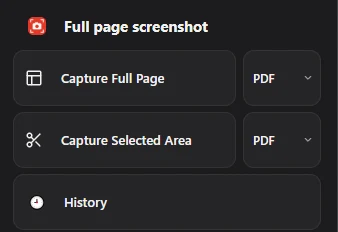
If the page is open in Chrome, Full page screenshot scrolls it for you and saves one PDF, PNG or JPG. It only works inside the browser, so for desktop apps, games and the Windows interface, stick with the shortcuts above.
Questions people ask
Why is Print Screen not working on my HP laptop?
Try Fn + PrtSc, then check the Fn lock. Also remember that plain PrtSc only copies to the clipboard: paste with Ctrl + V to see the result, or use Windows + PrtSc to get a file.
How do I screenshot on an HP laptop without the PrtSc key?
Use Windows + Shift + S. It does not need the PrtSc key at all.
How do I screenshot only one window?
Press Alt + PrtSc to copy the active window, or choose Window mode after Windows + Shift + S.
More laptop guides: Dell · Lenovo · full screen snip · screenshot part of the screen