How to screenshot on Lenovo laptops: ThinkPad, IdeaPad, Yoga
October 30, 2026 · 3 min read
To screenshot on a Lenovo laptop, press Windows + PrtSc to save the whole screen to Pictures > Screenshots, or Windows + Shift + S to capture an area, a window or the full screen with the Snipping Tool. If PrtSc shares a key with another function, hold Fn as well.
Where the PrtSc key is on Lenovo keyboards
Lenovo moves the key between product lines, so look for a key labelled PrtSc or PrtScr:
| Keyboard | Where to look | Typical press |
|---|---|---|
| Separate PrtSc key in the top row | Right end of the function row | PrtSc |
| PrtSc printed on a function key | For example F10 | Fn + that key |
| No PrtSc label | Insert key | Fn + Insert |
Lenovo’s Print Screen guide mentions the F10 and Fn + Insert variants. Lenovo’s guide also notes that when you use more than one monitor, PrtSc captures all of them together.
If the top row controls volume and brightness by default, the F-key functions need Fn. On ThinkPads, Fn + Esc toggles the Fn lock so the top row works as F keys without holding Fn.
Lenovo laptop screenshot shortcuts
| Keys | What happens |
|---|---|
| PrtSc | Copies the whole screen to the clipboard |
| Alt + PrtSc | Copies the active window |
| Windows + PrtSc | Saves a PNG to Pictures > Screenshots |
| Windows + Shift + S | Snipping Tool: rectangle, window, full screen or freeform |
On Windows 11, PrtSc may open the Snipping Tool overlay instead of copying the screen straight away. That behaviour comes from a Windows keyboard setting under Settings > Accessibility > Keyboard or, on newer builds, Settings > Bluetooth & devices > Keyboard, the same on every brand.
Find the right shortcut for your Lenovo
Pick your computer and what you want to capture.
Lenovo Yoga and tablets
On a Yoga or another 2-in-1, the keyboard shortcuts above work as long as the keyboard is attached. In tablet mode, open the Snipping Tool from the Start menu and choose the capture mode there.
Where Lenovo screenshots are saved
Windows + PrtSc and the Snipping Tool save PNG files to Pictures > Screenshots. PrtSc and Alt + PrtSc do not create files: paste the image with Ctrl + V where you need it.
Capturing a long web page
A screenshot covers only the display. To keep a page that scrolls, such as a report, a long order history or a full article, the browser needs to scroll and stitch it for you. We compare the options in our guide to scrolling screenshots on Windows.
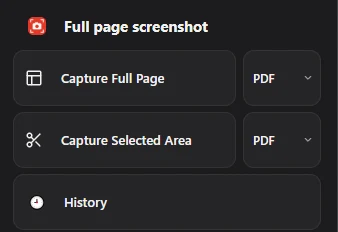
Full page screenshot does this in Chrome: one click, then PDF, PNG or JPG. It works for web pages, not for apps or the Windows desktop, where the shortcuts above stay the best choice.
Questions people ask
Why is my Lenovo screenshot not saving?
Plain PrtSc only copies to the clipboard. Use Windows + PrtSc to create a file, or open the Snipping Tool notification to save the snip.
How do I screenshot on a Lenovo without PrtSc?
Press Windows + Shift + S. It doesn’t need the PrtSc key.
How do I screenshot only part of the screen?
Use Windows + Shift + S and drag a rectangle. Our guide to screenshotting part of the screen covers Mac and Chromebook too.
More laptop guides: HP · Dell · full screen snip