Full screen snip on Windows: Snipping Tool, PrtSc and delay
October 30, 2026 · 3 min read
To snip the full screen on Windows 10 or 11, press Windows + Shift + S and click the Full screen icon in the toolbar at the top. The capture happens immediately and is saved to the Screenshots folder. If you don’t need to annotate it, Windows + PrtSc saves the full screen in one keystroke.
Full screen snip, step by step
- Press Windows + Shift + S. The screen dims and the snipping toolbar appears.
- Choose Full screen, the fourth icon after Rectangle, Window and Freeform.
- Windows captures the screen straight away. A notification appears in the corner: click it to open the snip in the Snipping Tool, where you can crop, draw or save a copy elsewhere.
Microsoft’s Snipping Tool guide lists the same modes and notes that every snip is saved to the Screenshots folder automatically.
Full screen snip with a delay
Some things vanish the moment you press a key: a dropdown menu, a tooltip, a right-click menu. Use a delay:
- Open the Snipping Tool app from the Start menu.
- Press Alt + D to choose a delay of 1 to 5 seconds, or pick it in the toolbar.
- Select Full screen mode with Alt + M, then click New.
- Open the menu you want to capture before the countdown ends.
Full screen snip vs PrtSc vs Windows + PrtSc
| Method | Keys | Saved as a file | Opens an editor |
|---|---|---|---|
| Full screen snip | Windows + Shift + S, then Full screen | Yes, in Screenshots | Yes, from the notification |
| Save the screen | Windows + PrtSc | Yes, in Pictures > Screenshots | No |
| Copy the screen | PrtSc | No, clipboard only | No |
On laptops where PrtSc shares a key with an F key, you may need Fn as well. Our guides for HP, Dell and Lenovo show where the key is on each brand.
Not on Windows, or need something else?
Pick your computer and what you want to capture.
Full screen snips with two monitors
With more than one display, PrtSc captures all screens together as one wide image, as Lenovo’s Print Screen guide notes. If you only need one display, use Rectangle mode and drag across that monitor, or Window mode for a single app.
Full screen is not the same as full page
A full screen snip covers what fits on the display. A web page that keeps going below the fold, such as a long article, a checkout summary or a chat history in the browser, gets cut at the bottom edge. For that you need a scrolling capture, which Windows doesn’t include.
We compare the ways to get one in scrolling screenshots on Windows.
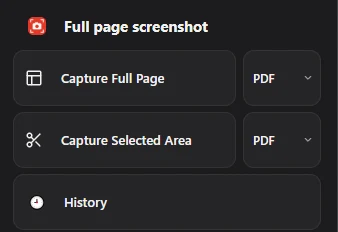
Full page screenshot covers that case in Chrome: it scrolls the page, captures every section and saves one PDF, PNG or JPG.
Questions people ask
Where do full screen snips go?
To the Screenshots folder inside Pictures. To paste a snip somewhere, open it from the notification and press Ctrl + C. You can change the folder in the Snipping Tool settings.
How do I take a full screen snip without the Snipping Tool?
Press Windows + PrtSc. The screen dims for a moment and a PNG appears in Pictures > Screenshots.
Can I snip the full screen on Windows 10?
Yes. Windows + Shift + S and the Full screen mode work on Windows 10 and Windows 11.