How to screenshot on a Dell laptop: PrtScr, Fn + F10, Insert
October 30, 2026 · 3 min read
Every Dell laptop running Windows can take a screenshot with Windows + PrtScr, which saves the whole screen as a file, while Windows + Shift + S captures a chosen area. Where the Print Screen function shares a key with F10, you press Fn + F10 instead of a separate PrtScr key. Models without either use Fn + Insert.
Which key is Print Screen on your Dell
Dell labels the key in several ways: PrintScreen, PrntScrn, PrntScr, PrtScn, PrtScr or PrtSc. Dell’s support article on the Print Screen key describes three layouts:
| Your keyboard | How to trigger Print Screen |
|---|---|
| A separate PrtScr key | Press PrtScr |
| PrtScr printed on a function key, for example F10 | Fn + F10 (or the key that carries the label) |
| No PrtScr label at all | Fn + Insert |
Dell laptop screenshot shortcuts
Once you know which key acts as PrtScr, the Windows shortcuts work as on any PC:
| Keys | What happens |
|---|---|
| PrtScr | Copies the entire screen to the clipboard |
| Alt + PrtScr | Copies only the active window |
| Windows + PrtScr | Saves a PNG to Pictures > Screenshots |
| Windows + Shift + S | Opens the Snipping Tool overlay for an area, window or full screen |
On a laptop where PrtScr needs Fn, add it to each combination, for example Windows + Fn + F10. The Windows + Shift + S shortcut never involves PrtScr, which makes it the easiest option on keyboards where the key is hard to find.
Find the right shortcut for your Dell
Pick your computer and what you want to capture.
Where Dell screenshots are saved
Files made with Windows + PrtScr or the Snipping Tool go to Pictures > Screenshots. Plain PrtScr and Alt + PrtScr keep the image on the clipboard only. Paste it with Ctrl + V into Paint, Word, an email or a chat to use it.
Timed and freeform screenshots
For a menu that closes when you press a key, open the Snipping Tool app, set a delay with Alt + D (1 to 5 seconds), start a new snip and open the menu while the countdown runs. Freeform mode lets you draw any shape around the part you need. Both are described in Microsoft’s Snipping Tool guide.
When you need a whole web page
Screenshots on Windows stop at the edge of the display. For a long page in the browser, such as a booking confirmation, a long form or an article you want to keep, see our guide to scrolling screenshots on Windows.
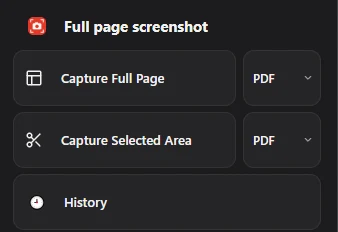
In Chrome, Full page screenshot scrolls the page for you and saves it as one PDF, PNG or JPG, with no Fn combinations involved. It captures web pages only; for apps and the desktop, use the shortcuts above.
Questions people ask
Why does PrtScr do nothing on my Dell laptop?
Check two things: the key may need Fn, and plain PrtScr only copies to the clipboard, so nothing appears until you paste. Try Windows + Fn + PrtScr (or Fn + F10) and check Pictures > Screenshots.
Is there a Dell screenshot app?
Dell laptops use the tools built into Windows: the Print Screen key and the Snipping Tool. No extra Dell software is needed.
How do I screenshot on a Dell tablet?
Dell’s support article lists Windows button + Volume down for Windows tablets.
More laptop guides: HP · Lenovo · full screen snip