How to screenshot part of the screen on any computer
October 30, 2026 · 3 min read
To screenshot part of the screen, press Windows + Shift + S on Windows, Cmd + Shift + 4 on a Mac, or Shift + Ctrl + Show windows on a Chromebook, then drag a box around the area you need. Each system copies or saves the result automatically.
Shortcuts to screenshot part of the screen
| System | Keys | Where it goes |
|---|---|---|
| Windows 10 and 11 | Windows + Shift + S, then Rectangle | Pictures > Screenshots |
| Mac | Cmd + Shift + 4 | Desktop by default |
| Mac, to the clipboard | Cmd + Ctrl + Shift + 4 | Clipboard only |
| Chromebook | Shift + Ctrl + Show windows, then partial | Clipboard and Downloads |
Find the shortcut for your computer
Pick your computer and what you want to capture.
Windows: Snipping Tool rectangle and freeform
On any Windows laptop, including HP models where PrtSc needs Fn, press Windows + Shift + S. The screen dims and a toolbar appears. Choose Rectangle and drag across the area. Freeform lets you draw any shape, and Window captures one app window with a click. The snip is saved to Screenshots automatically, and Ctrl + C in the Snipping Tool copies it, as described in Microsoft’s Snipping Tool guide.
Mac: Cmd + Shift + 4
Press Cmd + Shift + 4 and the pointer turns into crosshairs. Drag to select an area; release to capture. While dragging, hold Shift to lock one direction or Option to resize from the centre. Press Space instead of dragging to capture a single window. Esc cancels.
Cmd + Shift + 5 opens a toolbar with the same options plus a timer and a choice of save location.
Chromebook: the Screen capture tool
Press Shift + Ctrl + Show windows, or the Screenshot key if your keyboard has one, choose Take a partial screenshot, drag the area and click Capture. The Chromebook guide covers keyboards without a Show windows key.
Part of a web page that doesn’t fit on screen
All these tools capture only what is visible. That’s a problem when the area you need is taller than the screen: a long table, a full comment thread, a product page with its reviews.
You can zoom the browser out with Ctrl + - to fit more in, but small text quickly becomes unreadable.
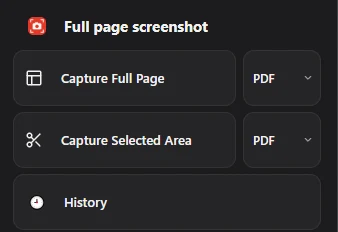
In Chrome, Full page screenshot gives you two ways around this. Capture Selected Area captures just the part of the page you mark, and Capture Full Page captures the whole page from top to bottom, so a long table or thread arrives in one file you can crop later. Both save as PDF, PNG or JPG. Outside the browser, use the system shortcuts above.
Questions people ask
How do I screenshot part of the screen without the Snipping Tool?
On Windows, Alt + PrtSc copies the active window, which may be all you need. For any other shape, the Snipping Tool is the built-in option.
Can I change where Mac partial screenshots are saved?
Yes. Press Cmd + Shift + 5, click Options and pick a folder under “Save to”.
Why is my partial screenshot blurry?
A partial screenshot is saved at your screen’s resolution, so it blurs when something scales it up later. Capture the area at 100% browser zoom, or zoom in before capturing small text.