How to screenshot on a Chromebook: every shortcut and tool
October 30, 2026 · 4 min read
To take a screenshot on a Chromebook, press Ctrl + Show windows for the whole screen, or Shift + Ctrl + Show windows to open the Screen capture tool and pick a partial area or a single window. Newer Chromebooks also have a dedicated Screenshot key that opens the same tool. Every screenshot is copied to the clipboard and saved to the Downloads folder.
The Show windows key is the one with a rectangle and two vertical lines, in the spot where F5 sits on a regular keyboard.
Chromebook screenshot shortcuts at a glance
| What you want | Keys |
|---|---|
| Whole screen | Ctrl + Show windows |
| Screen capture tool (partial, window or full screen) | Shift + Ctrl + Show windows |
| Screen capture tool on a keyboard with a Screenshot key | Screenshot |
| Screen capture tool on an external keyboard | Ctrl + Shift + F5 |
| Tablet mode | Power + Volume down |
These are the combinations Google lists in its Chromebook screenshot help and keyboard shortcut list. Google notes the shortcut list is written for US keyboards, so a few keys sit in different places on other layouts.
Find the right Chromebook shortcut
Pick your computer and what you want to capture.
Take a partial screenshot or a single window
Press Shift + Ctrl + Show windows. A toolbar appears at the bottom of the screen with three image options: full screen, partial and window.
- Choose Take a partial screenshot.
- Drag across the area you need, then click Capture.
- For a single window, choose Take a window screenshot and click the window.
You can also adjust the selection from the keyboard: Space switches between sections, Tab moves between corners, and the arrow keys change the height and width. The same area shortcuts on Windows and Mac are compared in how to screenshot part of the screen.
If your keyboard has no Show windows key
Some Chromebooks have a dedicated Screenshot key in the top row. Press it and the Screen capture toolbar opens straight away.
On an external keyboard without a Show windows key, press Ctrl + Shift + F5. If you prefer the mouse, open Quick Settings in the bottom-right corner and choose Screen capture.
Screenshots on a Chromebook tablet
In tablet mode, press Power + Volume down together for a full-screen shot. For partial or window screenshots, press and hold the Power button and choose Screen capture.
Where Chromebook screenshots are saved
Screenshots go to the Downloads folder by default and are copied to the clipboard at the same time, so you can paste one into a chat or a document with Ctrl + V without opening the Files app.
To save them somewhere else, open the Screen capture toolbar, click the settings gear and choose Select folder.
When the page you need is longer than the screen
Everything above captures what is visible on the display. A long web page, such as an order history, a documentation page or a social feed, needs a different approach, because ChromeOS has no scrolling capture.
You have two options in the Chrome browser:
- Chrome’s developer tools include a Capture full size screenshot command. It works but takes several steps and saves only PNG. Our guide to full page screenshots in Chrome walks through it, and the Chrome screenshot shortcuts list every DevTools capture command.
- A full page screenshot extension scrolls the page for you and saves the result as one file.
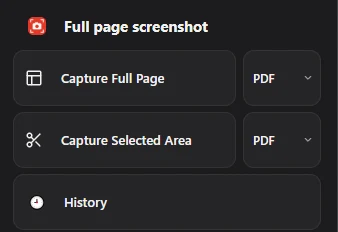
Full page screenshot works in Chrome on ChromeOS like on any other computer: open the page, click the extension icon, choose Capture Full Page and pick PDF, PNG or JPG. It captures web pages only, so for the Files app, Android apps or the desktop, the keyboard shortcuts above remain the right tool.
Questions people ask
Why is my Chromebook screenshot not saving?
Check the save folder in the Screen capture settings. If it points to a folder that no longer exists or to a disconnected drive, choose a new folder. The screenshot is still on the clipboard, so you can paste it before trying again.
How do I screenshot on a Chromebook without the Show windows key?
Press the Screenshot key if your keyboard has one, use Ctrl + Shift + F5 on an external keyboard, or open Quick Settings and choose Screen capture.
Can a Chromebook record the screen too?
Yes. Press Shift + Ctrl + Show windows, switch to Screen record and choose the full screen, a partial area or a window. Google’s help page also covers recording with the camera and sound.