Chrome screenshot shortcuts for Windows, Mac and ChromeOS
October 30, 2026 · 3 min read
Chrome has no screenshot shortcut of its own. When you take a screenshot in Chrome, you use your system’s keys: Windows + Shift + S on Windows, Cmd + Shift + 4 on a Mac, Ctrl + Show windows on a Chromebook. For a capture of the whole page, Chrome hides a command in its developer tools, and extensions add a button.
Screenshot shortcuts that work in Chrome
| System | Visible area | Part of the screen | Whole page |
|---|---|---|---|
| Windows | Windows + PrtSc | Windows + Shift + S | DevTools or extension |
| Mac | Cmd + Shift + 3 | Cmd + Shift + 4 | DevTools or extension |
| ChromeOS | Ctrl + Show windows | Shift + Ctrl + Show windows | DevTools or extension |
On a Mac, Cmd + Shift + 4 followed by Space captures just the Chrome window, with its shadow. The ChromeOS shortcuts come from Google’s Chromebook help; our Chromebook guide covers keyboards without a Show windows key.
Which keys work on your computer?
Pick your computer and what you want to capture.
The hidden capture commands in Chrome DevTools
Chrome’s developer tools include four screenshot commands. To reach them:
- Open DevTools: F12 or Ctrl + Shift + I on Windows and ChromeOS, Cmd + Option + I on a Mac.
- Open the command menu: Ctrl + Shift + P, or Cmd + Shift + P on a Mac.
- Type screenshot and pick one:
| Command | What it captures |
|---|---|
| Capture full size screenshot | The entire page, top to bottom |
| Capture screenshot | The visible part of the page |
| Capture area screenshot | An area you drag |
| Capture node screenshot | The element selected in the Elements panel |
Each command saves a PNG to your Downloads folder. They’re useful when you need one capture and don’t want to install anything; the full walkthrough is in how to take a full page screenshot in Chrome.
The trade-off of keyboard shortcuts in Chrome
System shortcuts stop at the visible area, and the DevTools route takes three steps and gives you PNG only. If you capture pages often, a toolbar button is faster than either.
With Full page screenshot pinned to the toolbar, a capture is two clicks: the icon, then Capture Full Page or Capture Selected Area. You pick PDF, PNG or JPG in the menu next to each mode, and History keeps every file for preview, sharing, printing or downloading again. 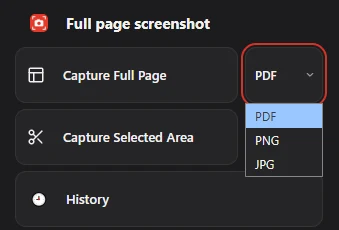
Chrome lets you assign keyboard shortcuts to extensions on the chrome://extensions/shortcuts page if an extension provides commands for it.
Questions people ask
What is the shortcut for a full page screenshot in Chrome?
There isn’t a single key. The quickest built-in route is Ctrl + Shift + I, then Ctrl + Shift + P, then Capture full size screenshot. An extension reduces it to a click.
Where do Chrome screenshots go?
System shortcuts save to the system’s folder: Pictures > Screenshots on Windows, the Desktop on a Mac, Downloads on a Chromebook. DevTools captures go to Chrome’s Downloads folder.
Why can’t I screenshot some pages in Chrome?
Pages such as chrome://settings and the Chrome Web Store are protected: no extension can capture them. Some streaming sites also show a black area instead of the video in screenshots.