How to take a scrolling screenshot on Mac: 3 ways that work
October 31, 2026 · 4 min read
A Mac can’t take a scrolling screenshot on its own: Cmd + Shift + 3, 4 and 5 capture only what is on the display, and Apple’s screenshot guide lists no scrolling option. To capture a long web page, use your browser: Chrome (with DevTools or an extension), Firefox’s Save full page or Safari’s Web Inspector. To scroll a chat, a PDF or another app, you need a third-party app such as Shottr or CleanShot X.
Scrolling screenshot options on a Mac
| What you need | Tool | Cost |
|---|---|---|
| A web page in Chrome | Full page screenshot extension or DevTools | Free |
| A web page in Firefox | Right-click, Take Screenshot, Save full page | Free |
| A web page in Safari | Web Inspector Capture Screenshot | Free |
| Any app or window | Shottr or CleanShot X | Free or paid |
What the built-in Mac screenshot tools can do
Cmd + Shift + 5 opens the Screenshot toolbar. Its Options menu sets a timer, the save folder, the floating thumbnail and whether the pointer is shown. By default, screenshots land on the desktop. None of these modes scrolls: a long page is cut at the bottom edge of the window.
Mac screenshot shortcuts for every case
Pick your computer and what you want to capture.
Scrolling screenshot of a web page in Chrome on Mac
Without installing anything. Press Cmd + Option + I to open DevTools, then Cmd + Shift + P, type screenshot and run Capture full size screenshot. Chrome saves a PNG of the whole page to Downloads. Pages that load images while you scroll can come out with blank areas.
With an extension. An extension scrolls the page for you, waits for images and joins everything into one file.
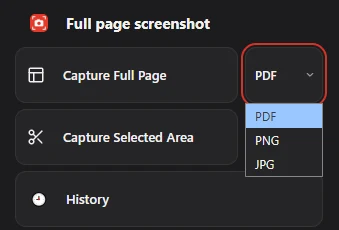
Full page screenshot works the same on macOS as on Windows: open the page, pick PDF, PNG or JPG in the menu next to Capture Full Page, then click it. When the capture is done, you can rename the file, preview it, share it or print it before saving. It captures web pages in Chrome only.
Scrolling screenshots in Safari and Firefox
Firefox has the most direct built-in option: right-click the page, choose Take Screenshot, then Save full page. The shortcut on a Mac is Cmd + Shift + S, as described in Mozilla’s guide.
Safari hides it in the developer tools: open Web Inspector, right-click the html element and choose Capture Screenshot. The steps are in our guide to full page screenshots in Safari.
Scrolling screenshots of apps, chats and documents
For anything outside a browser, macOS has no option at all, so you need an app. Shottr is free and takes scrolling screenshots of “any app, any window”. CleanShot X has a Scrolling Capture mode and is paid. We compare them in the best screenshot apps for Mac.
When a PDF is better than a long image
A very tall PNG is awkward to read or print. If you want to keep an article or a receipt, a PDF is often easier to handle. See how to save a webpage as PDF on a Mac.
Questions people ask
Does macOS have a scrolling screenshot?
No. The Screenshot app captures the screen, a window or a selected area, all limited to what is visible. For long pages, use a browser tool or a third-party app.
Where do Mac screenshots go?
To the desktop by default. Press Cmd + Shift + 5, open Options and choose another folder.
Can I take a scrolling screenshot of a chat on a Mac?
Not with the built-in tools. Apps such as Shottr scroll other windows; browser tools only work for web pages.