How to save a webpage as PDF on Mac: Safari and Chrome
October 31, 2026 · 3 min read
To save a webpage as PDF on a Mac in Safari, choose File > Print and click PDF at the bottom of the dialog, or use File > Export as PDF. In Chrome, press Cmd + P and pick Save as PDF as the destination. Both create a printable document, which can look different from the page on screen. For a PDF that keeps the page exactly as it looks, capture it as a screenshot PDF.
Ways to save a webpage as PDF on a Mac
| Method | Looks like the page on screen | Selectable text |
|---|---|---|
| Safari: File > Print > PDF | Not always: print layout | Yes |
| Safari: File > Export as PDF | Not always | Yes |
| Chrome: Print > Save as PDF | Not always: print layout | Yes |
| Screenshot PDF (Chrome extension) | Yes | No, it’s an image of the page |
Safari: Print to PDF
Apple’s Safari guide describes the steps:
- Open the page in Safari and choose File > Print (Cmd + P).
- In the options pop-up menu, choose Safari to include background colours and images or to add the address and date in headers and footers. If you don’t see the menu, click Show Details.
- Click PDF at the bottom of the dialog and choose what to do with the file, for example Save as PDF.
The same PDF button works in any Mac app that can print, as Apple’s Mac guide explains.
Safari: Export as PDF
Safari also has File > Export as PDF, which skips the print dialog and asks only where to save the file (How-To Geek walkthrough). It’s the quickest route when you don’t need print options.
Chrome on Mac: Save as PDF
Press Cmd + P, set Destination to Save as PDF and click Save. Our guide to saving a whole webpage as a PDF in Chrome covers the print settings that matter, such as background graphics and margins.
Why the PDF doesn’t look like the page
Print-to-PDF uses the site’s print layout: menus, sidebars and sticky elements may disappear, and long pages are split into sheets. That’s useful for reading but not for proof of what a page showed. A screenshot PDF keeps the look but turns the page into an image.
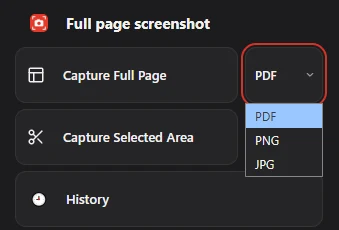
Full page screenshot does this in Chrome on a Mac: choose PDF next to Capture Full Page, click it, and the extension scrolls the page and saves it as a PDF. The text in that PDF is part of the image, so it can’t be edited or selected.
If you’d rather keep a long image than a PDF, see scrolling screenshots on Mac.
Questions people ask
How do I save a webpage as PDF on a Mac without printing?
In Safari, use File > Export as PDF. It saves the file directly without the print dialog.
Why is my Safari PDF missing images or colours?
Backgrounds are a print option. In the print dialog, choose Safari in the options menu and turn on printing backgrounds.
Can I select text in a PDF saved from Safari?
Yes. Print and Export as PDF keep the text. A screenshot PDF doesn’t, because the page is saved as an image.