Microsoft Edge screenshot: capture a full page or an area
October 31, 2026 · 3 min read
Microsoft Edge has a built-in screenshot tool. Press Ctrl + Shift + S, or right-click the page and choose Screenshot, then capture the full page or drag to select an area. Before you copy or save the screenshot, you can draw on it with the pen. The tool captures only the web page in Edge; for anything else on screen, use Windows’ own shortcuts.
Microsoft Edge screenshot options
| What you need | In Edge | Result |
|---|---|---|
| The whole page, including below the fold | Ctrl + Shift + S, then full page | Preview with pen, copy or save |
| One area of the page | Ctrl + Shift + S, then drag | Preview with pen, copy or save |
| Anything outside Edge | Windows + Shift + S | Snipping Tool |
Take a full page screenshot in Edge
- Open the page and press Ctrl + Shift + S. You can also right-click the page or open it from the Edge menu.
- Choose to capture the full page.
- Add notes with the pen if you need to.
- Copy the screenshot or save it to your files.
Microsoft’s Edge page describes the same options: “capture a full page or a selected area”, add markup, then copy or save. Copied screenshots paste as images into apps such as Word, PowerPoint or OneNote.
Capture an area in Edge
Press Ctrl + Shift + S and drag across the part you need. This is useful for one table or chart without the rest of the page.
When to use Windows shortcuts instead
Edge’s tool works inside the browser window. To capture the taskbar, another app or several windows, use the Snipping Tool with Windows + Shift + S. For long pages in other browsers, see scrolling screenshots on Windows.
Other browsers
Firefox has a similar built-in tool with Save full page: see Firefox screenshots. Chrome doesn’t have a visible button and hides its full-page command in the developer tools.
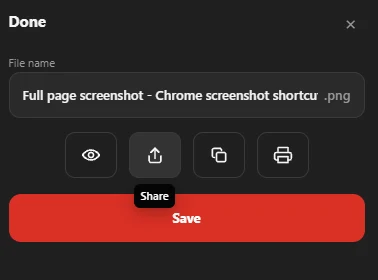
If you use Chrome, Full page screenshot gives Chrome what Edge has built in: capture the full page or a selected area, save it as PDF, PNG or JPG, and keep every file in History. It works in Chrome only.
Questions people ask
What is the screenshot shortcut in Microsoft Edge?
Ctrl + Shift + S. It opens Edge’s Screenshot tool, not the Windows Snipping Tool.
Can Edge take a scrolling screenshot?
Yes. Choose the full page option after Ctrl + Shift + S, and Edge captures the page below the visible area too.
Where are Edge screenshots saved?
Choose save in the screenshot preview to keep it as a file, or copy it and paste it into another app.