How to take a high resolution screenshot of a web page
October 31, 2026 · 3 min read
To take a high resolution screenshot, capture at the full resolution of your screen, save as PNG instead of JPG, and zoom in before capturing small details. For a web page sharper than your screen can show, open Chrome DevTools, set a higher device pixel ratio (DPR) such as 2 or 3, and use Capture full size screenshot: the image is rendered at that multiple of the normal size.
Why screenshots come out blurry
A screenshot copies the pixels on your display, no more. If the window is small, the page is zoomed out or the file is saved as a compressed JPG, details are lost. Scaling the image up later can’t bring them back.
Ways to take a high resolution screenshot
| Method | What it changes | Best for |
|---|---|---|
| Save as PNG | No compression artefacts on text and edges | Interfaces, text, diagrams |
| Zoom in before capturing | More screen pixels for the area you need | One chart or table |
| Chrome DevTools with a higher DPR | Renders the page at 2x or 3x | Web pages for print, slides or retina screens |
Option 1: PNG, not JPG
PNG keeps text and interface edges crisp; JPG compresses the image and can blur fine lines. Use JPG only when file size matters more than detail.
Option 2: zoom in first
Press Ctrl + + (Cmd + + on a Mac) to zoom the page, then capture the area. The same chart now covers more screen pixels, so it stays sharp when printed or projected.
Option 3: Chrome DevTools device pixel ratio
Chrome’s Device Mode documentation explains that DPR is “the ratio between physical pixels on the hardware screen and logical (CSS) pixels”. You can set it yourself:
- Open DevTools (F12, or Cmd + Option + I on a Mac) and turn on Device Mode with the phone-and-tablet icon.
- Click More options (three dots) > Add device pixel ratio.
- In the bar above the page, choose a value from the new DPR menu, for example 2 or 3.
- From the same More options menu, choose Capture screenshot for the visible part or Capture full size screenshot for the whole page.
The DPR works as a resolution multiplier: a 1920-pixel-wide view at DPR 2 gives a 3840-pixel-wide image, as this step-by-step guide shows. The same guide warns that full size captures don’t work perfectly on every site. The other DevTools capture commands are listed in Chrome screenshot shortcuts, and the full walkthrough is in how to take a full page screenshot in Chrome.
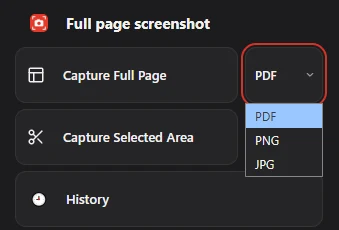
For everyday captures, Full page screenshot saves whole pages or selected areas as PNG, the format that keeps text crisp. For 2x or 3x images, use the DevTools method above.
Questions people ask
How do I take a high resolution screenshot on Windows?
Set the display to its recommended resolution, maximise the window, zoom in on the area and capture with Windows + Shift + S. For web pages, use the DevTools DPR method.
Can a screenshot have a higher resolution than my screen?
Not with system shortcuts. Chrome DevTools can render a web page at 2x or 3x with a custom DPR.
Is PNG or JPG better for screenshots?
PNG for text and interfaces, JPG when you need a smaller file and fine detail matters less.