Screenshot to PDF: how to save a screenshot as a PDF
October 31, 2026 · 3 min read
To turn a screenshot into a PDF on Windows, open the image, press Ctrl + P and choose Microsoft Print to PDF as the printer. On a Mac, open it in Preview, choose File > Export and pick PDF as the format. If the screenshot is of a web page, you can skip the image step: capture the page straight to PDF in Chrome.
Screenshot to PDF by system
| Where | Steps | Result |
|---|---|---|
| Windows 10 and 11 | Open the image, Ctrl + P, Microsoft Print to PDF, Print | PDF where you choose |
| Mac | Preview, File > Export, Format: PDF | PDF where you choose |
| Mac, any app | Cmd + P, PDF, Save as PDF | PDF where you choose |
| Web page in Chrome | Capture to PDF with an extension | PDF of the whole page |
On Windows: Microsoft Print to PDF
- Open the screenshot in Photos or any app that can print.
- Press Ctrl + P or choose File > Print.
- Select Microsoft Print to PDF as the printer and click Print.
- Choose a name and location, then click Save.
These steps match Duke University’s IT guide to saving as PDF. Check the print preview to make sure the whole image fits on the page.
On a Mac: Preview
Open the screenshot in Preview, choose File > Export, then pick PDF in the Format menu, as Apple’s Preview guide describes. Alternatively, press Cmd + P, click PDF and choose Save as PDF.
Web pages: skip the screenshot
If you’re saving a web page, a screenshot plus a conversion takes two steps and the page gets cut at the screen edge. Capturing the page directly to PDF keeps the whole page in one go.
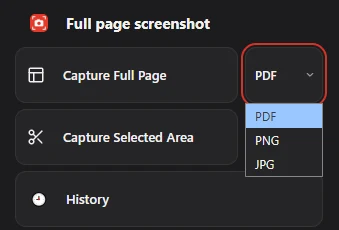
In Chrome, Full page screenshot has a format menu next to Capture Full Page: pick PDF, click capture, and the extension scrolls the page and saves it as a PDF. The page is saved as it looks, so the text in that PDF is part of the image and can’t be edited.
PNG, JPG or PDF?
Keep an image if you’ll paste it into a chat or a slide; choose PDF for documents you’ll send, print or file. More in PNG vs JPG for screenshots. Going the other way, from a PDF to an image, is covered in how to screenshot a PDF.
Questions people ask
How do I save a screenshot as a PDF on Windows?
Open it, press Ctrl + P, choose Microsoft Print to PDF and click Print, then save the file.
Can I make one PDF from several screenshots?
Yes. On a Mac, open them together in Preview and print to PDF. On Windows, select several images in File Explorer, right-click and choose Print (in Windows 11 it’s under Show more options), then pick Microsoft Print to PDF.
Can I edit the text in a screenshot PDF?
No. The PDF contains a picture of the text. To get editable text you need the original document or OCR software.